.png)

Summary
- Embedding Instagram adds real customer visuals and UGC to emails, increasing authenticity and driving higher click-through rates.
- Each Instagram image becomes a clickable CTA, sending subscribers to product pages, landing pages, or your Instagram profile.
- Dynamic Instagram content keeps newsletters fresh and encourages subscribers to keep opening future campaigns.
- Instead of manually managing images, tools like Flockler automate content sourcing, curation, and embedding, saving teams time while ensuring brand consistency and quality.
Email marketing campaigns remain one of the most powerful channels for brand communication in 2025, delivering an average ROI of $36 - $48 per dollar spent.
However, in an era where visual content dominates social media and captures attention instantly, traditional text-heavy newsletters are being replaced by more vibrant emails containing designs and graphics.
That's where embedding Instagram feeds into your email campaigns becomes a game-changer. By infusing newsletters with visual social proof and authentic user-generated content (UGC), you get to transform plain emails into compelling visual experiences that recipients actually want to engage with.
In this comprehensive guide, you'll learn exactly how to embed Instagram feeds across different email platforms, why this strategy matters from a business perspective, and how to use tools like Flockler to simplify implementation while maintaining complete creative control and brand safety.
Why Embed Instagram in Email? Key Benefits Explained
Integrating Instagram's visual content into your email marketing strategy delivers measurable advantages that traditional text-based campaigns simply cannot match:
Boosts Engagement Through Social Proof
When you infuse Instagram's visual UGC (user-generated content) into your email campaigns, you create immediate trust. Email recipients get to see real people, customers, fans, and employees genuinely interacting with your brand, rather than polished marketing imagery that feels staged or inauthentic.
Drives Measurable Traffic and Conversions
An embedded Instagram feed represents more than attractive visuals; it's a strategic driver of traffic to your Instagram account. When users click images in their email, you can direct them to your Instagram profile (building your social following), campaign landing pages (driving conversions), or specific product pages (generating sales).
This effectively turns each image into a mini-CTA (call-to-action) that aligns with your primary email objectives. Rather than relying solely on button clicks, you create multiple engagement pathways that accommodate different user preferences and browsing behaviors.
Increases Newsletter Retention and Anticipation
Including dynamic Instagram content gives your newsletters an ever-changing feel that static templates lack. Subscribers become more likely to stay engaged and genuinely look forward to future issues when they know the email content evolves with each edition.
This variety combats email fatigue, the phenomenon where recipients disengage from predictable, repetitive newsletter formats. Fresh Instagram content ensures every email feels current, relevant, and worth opening rather than just another message to delete or ignore.
Optimizes Your Content Workflow
Rather than manually exporting Instagram images, resizing them, uploading to email platforms, and arranging layouts for each newsletter edition, you can automate the entire process. Connected feeds or social wall integrations pull fresh Instagram content directly into your email system, saving significant time and eliminating repetitive manual work.
This automation is particularly valuable for teams that send frequent newsletters or manage multiple email campaigns simultaneously. Marketing teams can focus on strategy, messaging, and optimization rather than tedious content preparation tasks.
How to Embed Instagram Feeds in Email Using Flockler
Adding Instagram feeds to email newsletters, welcome emails, or promotional campaigns is straightforward with Flockler. Sign up for Flockler's 14-day free trial and create your first Instagram email block in minutes, no credit card required.
Follow these steps to bring Instagram's visual appeal into your email communication.
1. Aggregate Your Instagram Content
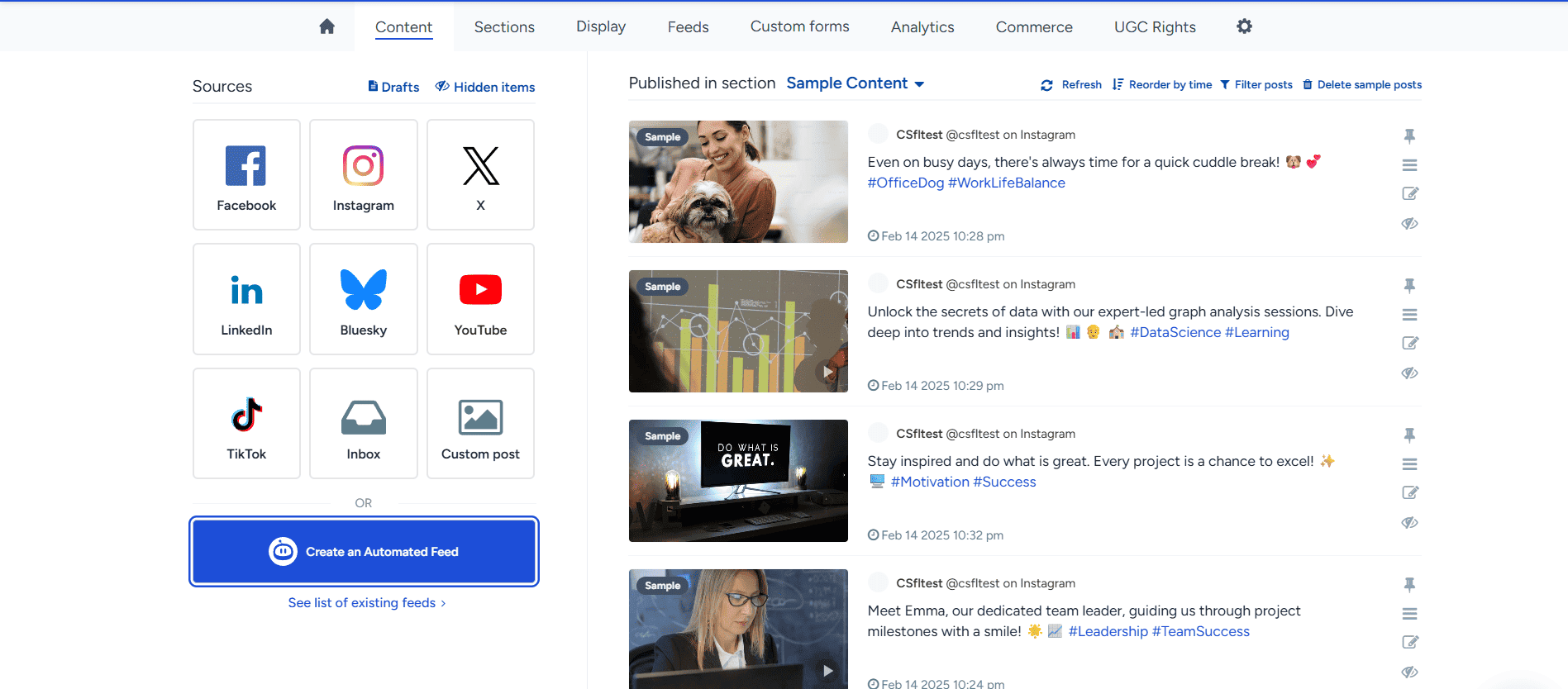
Sign up for Flockler to create visually impressive layouts featuring your Instagram posts, videos, and Reels. You can source content from multiple places:
- Your business account's feed
- Mentions of your business account from other users
- Branded hashtag campaigns (e.g., #YourBrandName)
- Curated collections from specific accounts or campaigns
Flockler's intuitive interface makes gathering Instagram content simple. Just connect your account, specify your sources (hashtags, accounts, or mentions), and watch as content populates automatically.
💡 Pro tip: Check out Flockler's detailed step-by-step guide on creating Instagram feeds for comprehensive setup instructions and advanced customization options.
2. Create an Instagram Block for Email

Once your content is aggregated, click the "Display" tab and tap the "Create a new layout" button. Then, select the "I want to embed Flockler in an email newsletter" option.
An intuitive editor opens, presenting four layout options optimized specifically for email:
- Grid layout: Clean, organized presentation ideal for showcasing multiple posts
- Carousel layout: Dynamic, scrollable format that draws attention
- Wall/masonry layout: Visually engaging with varied post sizes
- Slideshow layout: Sequential presentation with smooth transitions
After selecting your preferred design, add specific Instagram images and videos to your block. Flockler's drag-and-drop interface makes reordering content effortless. Simply click and move posts until you achieve your desired arrangement.
Once satisfied with your layout and content selection, click the "Generate" button.
3. Add the Instagram Feed to Your Email Platform
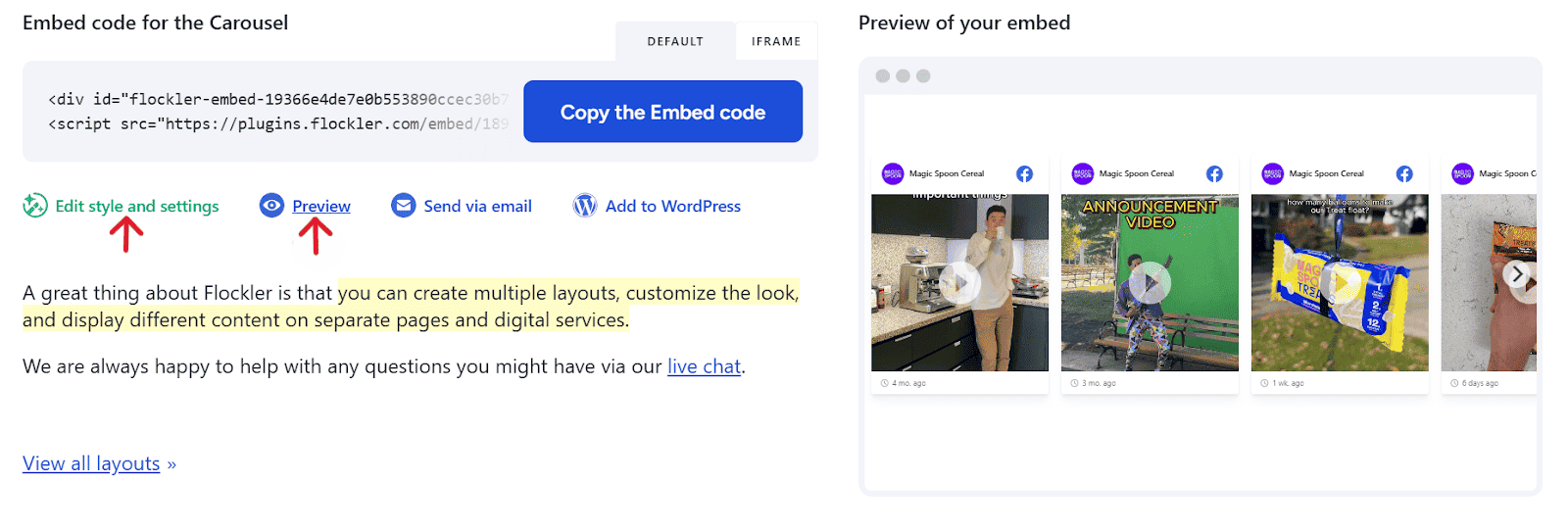
Copy the generated HTML code and paste it into your email marketing platform using their custom HTML block feature. The specific implementation varies by platform, but the general process remains consistent across all major email marketing tools. We’ll go into detailed instructions for 11+ platforms in the next section.
‼️Important note: Instagram feeds in emails don't update automatically after sending; they display a curated collection of posts you select at the time of email creation.
Step-by-step guide on how to embed Instagram Feeds in different email marketing platforms
Follow these platform-specific guides to add Instagram feeds to your next welcome email, newsletter, or promotional campaign:
How to add an Instagram feed to a Mailchimp email
MailChimp has an intuitive editor that makes adding Instagram blocks straightforward:
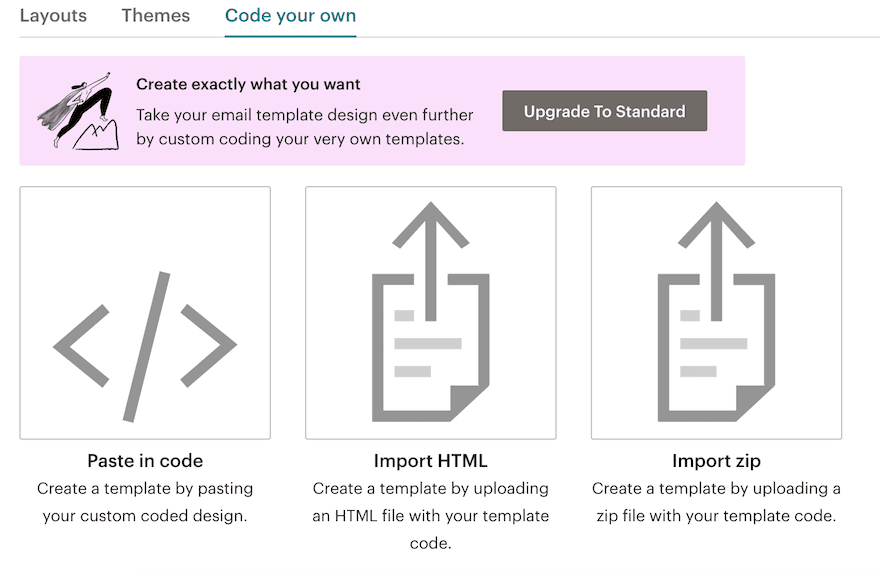
1. Click Campaigns, then click Email templates. Under the “Code Your Own tab, choose “Paste in code”.
2. Replace the default code with the embed code generated in Flockler.
3. Click "Save changes," and your Instagram block appears in the MailChimp email preview.
How to Embed an Instagram Feed in Smartrmail

Smartrmail's e-commerce focus makes Instagram integration particularly valuable:
1. Open the email content editor and insert a new "HTML" block. Select a one-column layout for optimal visual impact.
2. The HTML editor appears automatically. Paste Flockler's Instagram block code and watch the layout render in preview.
3. Save changes and preview the result before sending your SmartrMail newsletter with Instagram content.
How to Embed an Instagram Feed in HubSpot
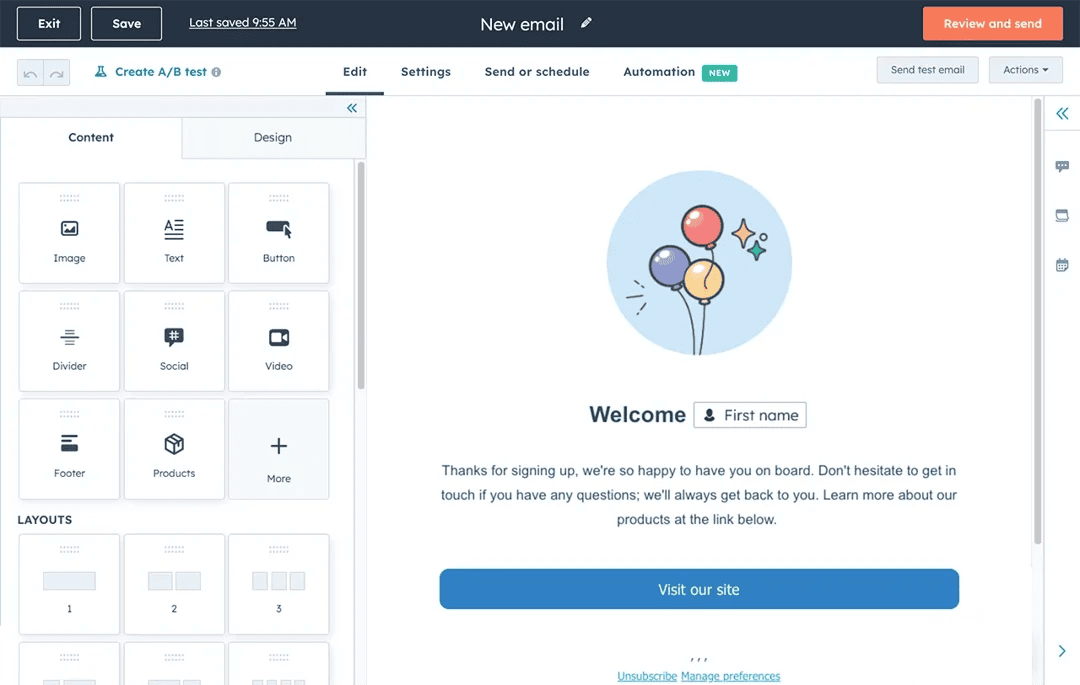
1. Open the content editor and click the "+" button to add new elements.
2. Select the "HTML - Email" element and drag it into your desired position.
3. The HTML editor opens automatically. Paste Flockler's Instagram block code into the HTML field. Click ‘Done’ and preview your email.
How to Embed an Instagram Feed in Klaviyo
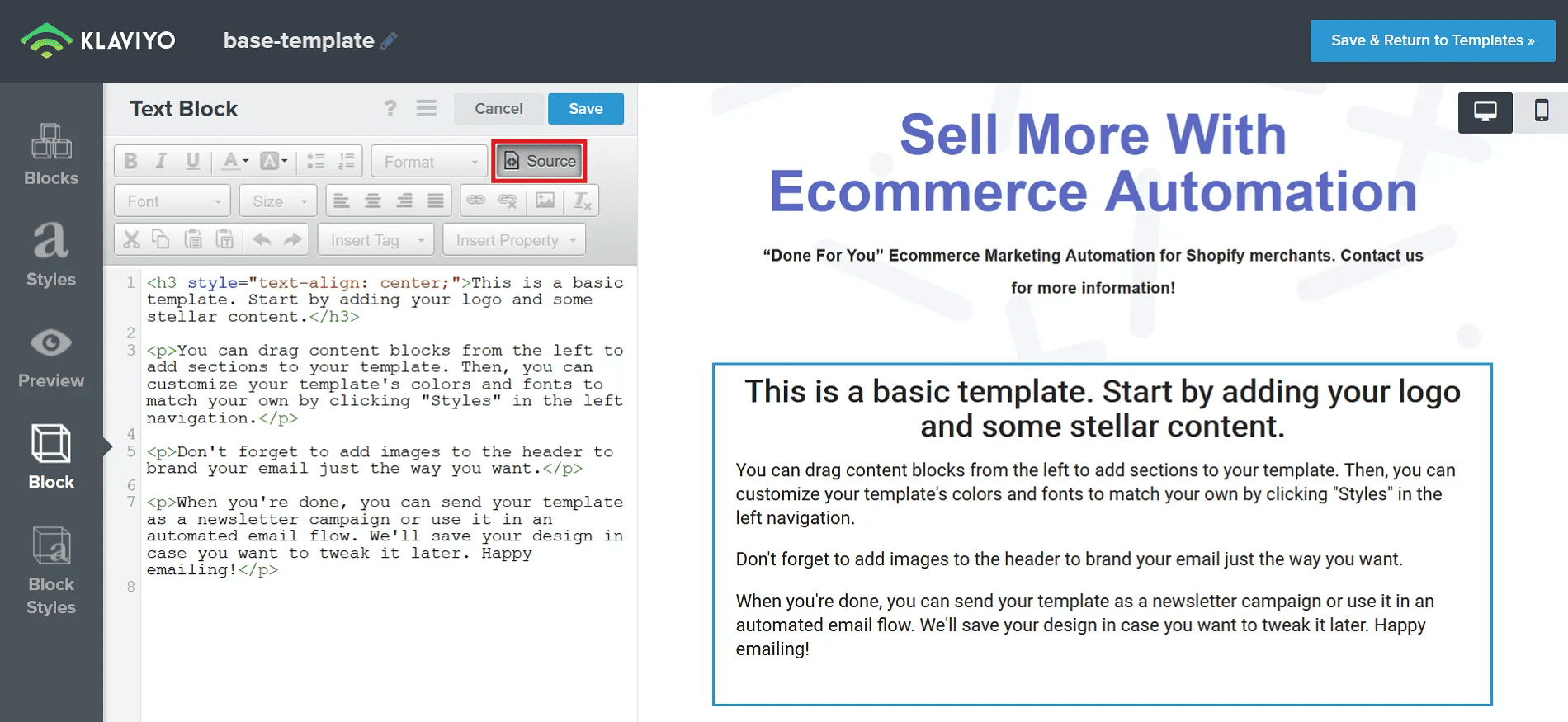
1. Open the email content editor and add a text block to your content area. Remove the default placeholder text and click the "HTML editor" icon in the toolbar.
2. Paste the Instagram block code from Flockler into the HTML editor.
3. Click the HTML icon again to return to visual mode. Your Flockler layout appears rendered. Save changes and review.
How to Embed an Instagram Feed in ActiveCampaign
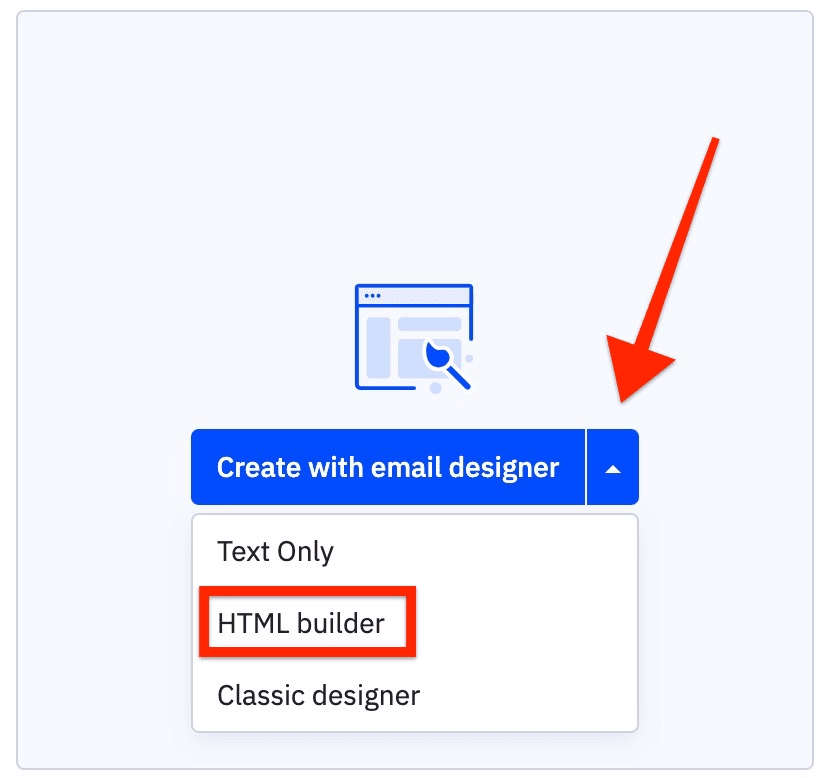
1. Open the email content editor and add the "HTML" block to your email structure.
2. Click to open the HTML code editor interface.
3. Replace the placeholder code with Flockler's Instagram block code.
4. Click outside the editor to close it and review how the Instagram content renders.
5. Save changes and send your ActiveCampaign email with the embedded Instagram block.
How to Embed an Instagram Feed in Kit (Formerly ConvertKit)
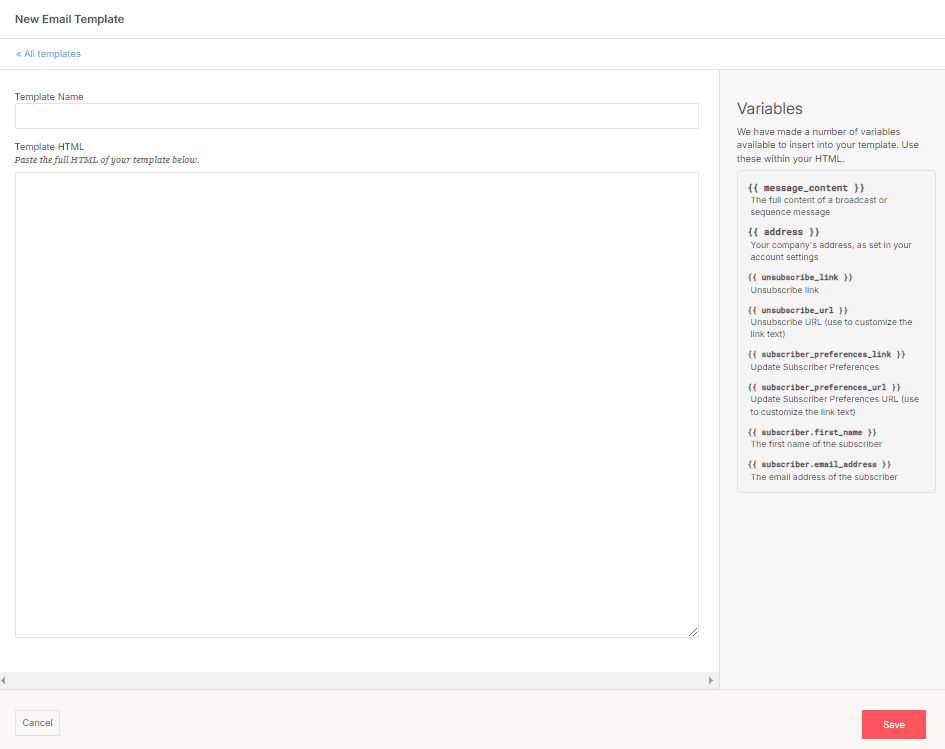
1. Open the content editor and click to add a new content block, selecting "HTML block" from the options.
2. The HTML element appears in your email. Click the "Edit" link to access the code editor and paste Flockler's Instagram block code.
3. Save changes and preview thoroughly before sending your ConvertKit newsletter with the Instagram block.
How to Embed an Instagram Feed in MailerLite
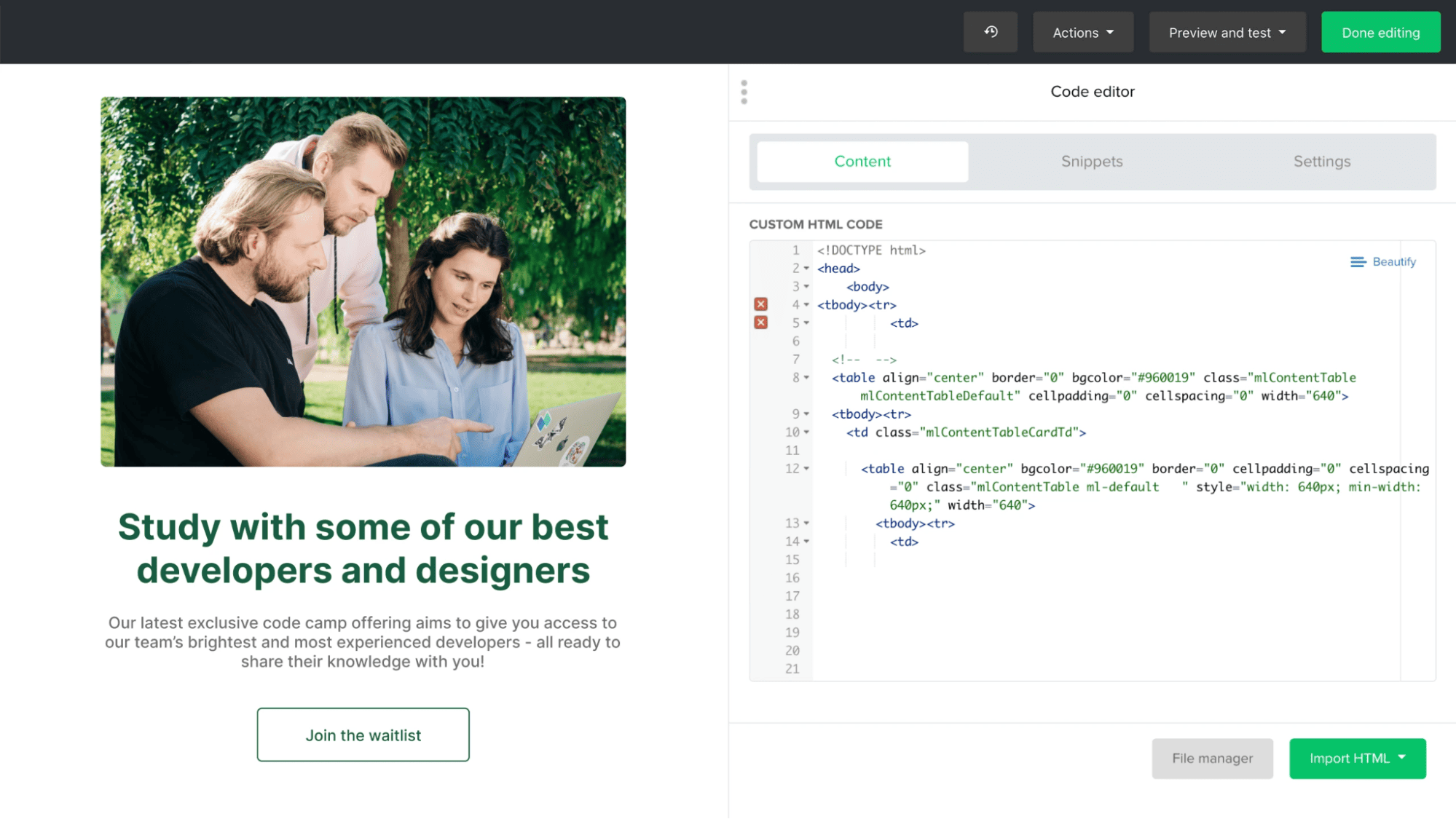
1. Open the email content editor and navigate to the start from scratch tab. Select the “Custom HTML editor” option.
2. Drag and drop the block into your content area and double-click to open the editor.
3. The HTML editor appears. Paste the Instagram block code from Flockler and click "Save." Preview your newsletter and save all changes.
How to Embed an Instagram Feed in Mailjet
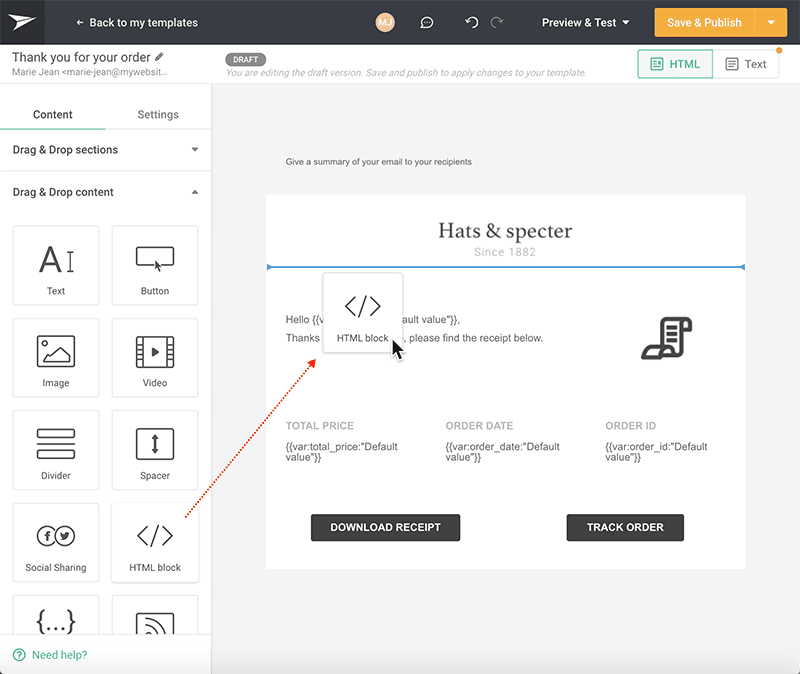
1. Open the email content editor and select the "HTML block" from available elements.
2. Drag and drop it into the content area on the right side of your layout.
3. Click to open the HTML element editor interface.
4. Add Flockler's Instagram block code to the editor and preview, and save changes
How to Embed an Instagram Feed in Moosend

1. Open the content editor and choose "Items" from the top left menu.
2. Drag and drop the "HTML" element to the content area on the right.
3. Click the HTML element to open the editor.
4. Paste Flockler's Instagram embed block into the editor. Preview and save your changes.
How to Embed an Instagram Feed in Omnisend
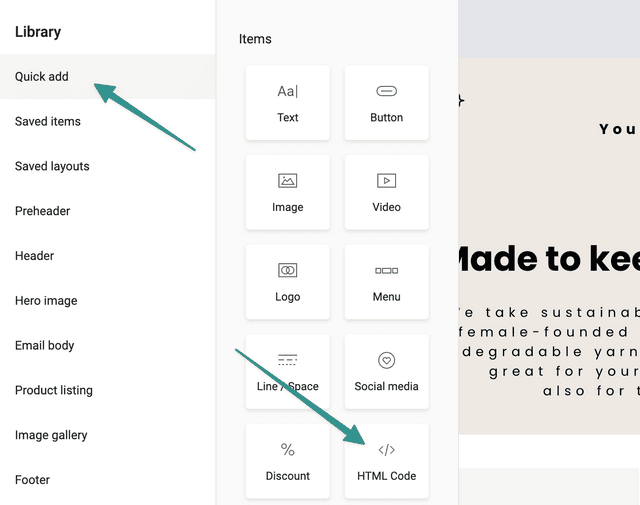
1. Open the content editor and select "Quick add" from the left panel. Drag an "HTML code" element to your content area.
2. Click the element to open the editor. Replace the default text with Flockler's Instagram embed block.
3. Use the "Layout" options to customize appearance, padding, and margins.
4. Save changes and send your Omnisend newsletter featuring the Instagram block.
How to Embed an Instagram Feed in Brevo(Formerly Sendinblue)

1. Drag and drop the email content editor and drag the "HTML" element into your content area.
2. The editor opens automatically. Replace the default code with Flockler's email embed code.
3. Click "Save" and preview your email newsletter. Save changes and send your newsletter with the Instagram block.
⚡Want to go beyond Instagram? Flockler lets you embed multiple social media sites and combine them in a single feed. Learn how to embed a social media feed on your website.
Best Practices while embedding Instagram into email
Implement these strategies to maximize the effectiveness of your Instagram-embedded emails:
Real-World Use Cases of embedding Instagram in email
See how leading brands leverage Instagram-embedded email content strategically:
E-Commerce Newsletters
Feature customer-generated Instagram images showing real people using your products in your weekly promotional emails. This authentic social proof increases trust dramatically and drives higher click-through rates than traditional product photography. Subscribers see themselves reflected in your customers, making purchasing decisions easier and more confident.
Brand and product campaign launches
Use curated influencer content or branded hashtag posts to create dynamic Instagram feeds in launch emails, amplifying your campaign narrative. Rather than telling subscribers about your campaign, you can show them real people engaging with it to create FOMO.
Event Marketing Emails
Build anticipation for upcoming events by embedding Instagram posts from past editions. Real attendee photos, behind-the-scenes moments, and genuine reactions make future invitations more compelling than generic event descriptions. Prospective attendees visualize themselves in those moments, increasing registration conversion rates.
Why Flockler Simplifies Instagram Email Embeds
Embedding Instagram feeds in emails transforms static newsletters into trust-building, engagement-driving touchpoints. Flockler makes this process simple and scalable for marketing teams.
- Built for marketers, not developers: Pull Instagram content from hashtags, mentions, or business accounts, curate it strategically, and embed it using simple HTML snippets, no coding expertise required.
- Unlimited creative control: Build unlimited Walls, Grids, Carousels, or Slideshows with complete design customization. Adjust colors, fonts, spacing, or use custom CSS to perfectly match your brand.
- Smart moderation: Ensure only approved, on-brand content appears through manual approval queues, keyword-based filtering, or AI-assisted moderation that flags problematic content automatically.
- Rich analytics: Track which Instagram posts generate the most engagement, which hashtags drive the best content, and which contributors are top creators, enabling data-driven optimization.
- Seamless integration: Copy and paste generated code into any email platform of your choice, such as MailChimp, Klaviyo, HubSpot, or 10+ others covered in this guide. No developer resources needed.
FAQs
Can Instagram feeds in emails update automatically after sending?
No. Instagram content in emails displays as a static snapshot of the posts you selected when creating the email. This ensures all recipients see consistent content regardless of when they open the message. However, you can easily create new versions with updated content for future sends.
Which email clients support Instagram embeds?
Most major email clients, including Gmail, Apple Mail, Outlook (web and app), Yahoo Mail, and mobile clients, support HTML-based Instagram embeds created through Flockler. Always preview your email across multiple clients before sending to your full list.
Do I need permission to embed user Instagram posts?
You should only embed content from public Instagram accounts. For best practices, obtain explicit permission from users before featuring their content in commercial email campaigns, especially if you're a larger brand with significant reach.
How many Instagram posts should I include in an email?
Start with 4-6 posts to maintain visual impact without overwhelming recipients or increasing email file size excessively. Test different quantities to find what resonates best with your specific audience.
Can I track clicks on Instagram images in emails?
Yes. Flockler lets you add tracking parameters Instagram image links, enabling measurement of click-through rates and conversion attribution in your analytics platform.
What happens if I delete an Instagram post after sending an email?
Since email embeds are static snapshots, deleting the original Instagram post won't affect emails that have already been sent. However, links to the original post will break if recipients click through.